Clicky Web Analytics
presentation
documentation
creation
automation
bim after dark live
Showing posts with label rendering materials. Show all posts

Monday, May 4, 2009

Tutorial - Custom Material Creation

0 comments

This is a topic that has always been brought to my attention and asked.  I never really touched the subject until I was forced too.  Revit has great built in rendering materials, but it might not have the specific stone you are looking for.  Using a stone material example, here is how to create a nice custom rendering material for revit.

My program of choice is Photoshop.  There are many other programs that can create this effect for you.

First, find good image of the material you are looking for.  The higher the resolution and quality of the image the better.  Here is my starting image:

Photobucket

Next, open the image in Photoshop (or whatever photo editing program you prefer).  Save the image as the same name with "_Bump" at the end.  You can use any name but I prefer the same file name with bump for ease of use.  The objective now is to create a bump map.  This uses white and black to create literally a "bump" when rendered.  Giving the illusion that it is really stone.

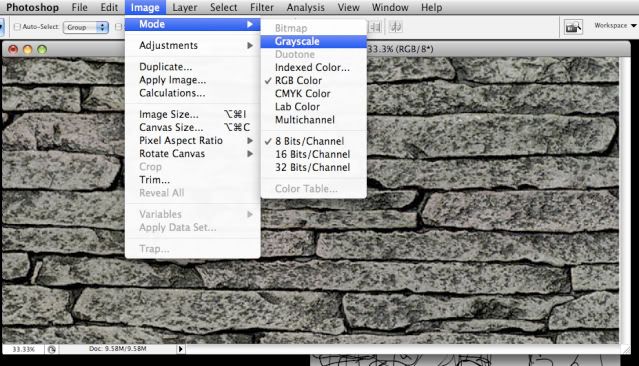
In photoshop, Grayscale the image...

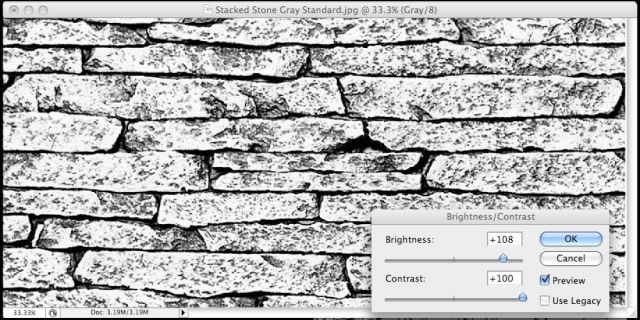
Once all of the color is removed from the image I like to adjust the contrast and brightness to really bring out the contrast between black and white.  Here is the setting I used for this particular image.

Now you should have two images; The original with color, and the new bump map image that should look similar to the one below.

Photobucket

Finally, import and render! See video below.

See the video here to learn how to import and use these images in Revit.


Saturday, March 21, 2009

Tutorial - Rendering a Flower Vase

2 comments
Julie asked:

"I am a student in The Art Institute of Las Vegas and I'm making a project with Revit. I have found several families in Revit City, some of them I've been able to change the materials and colors. But there are some that I can't make any changes on. Do you know how I could make changes, for example a single banquet I found, I would like to change the color of the seating, and a flower vase, when its being rendered the flower is in default color, how could i change the color of the flower?"

Thanks for the question Julie! Julie is an Interior Design student utilizing Revit. It is great to have Revit questions come from different perspectives of the fields. Julie also informed me that she was the President of her school's ASID (American Society of Interior Designers).
I created a little video to explain the very basics of setting up rendering materials.

Topics Covered:
- Editing Materials
- Creating New Materials
- Adding Rendering Materials
- Relationship Between Project and Family materials


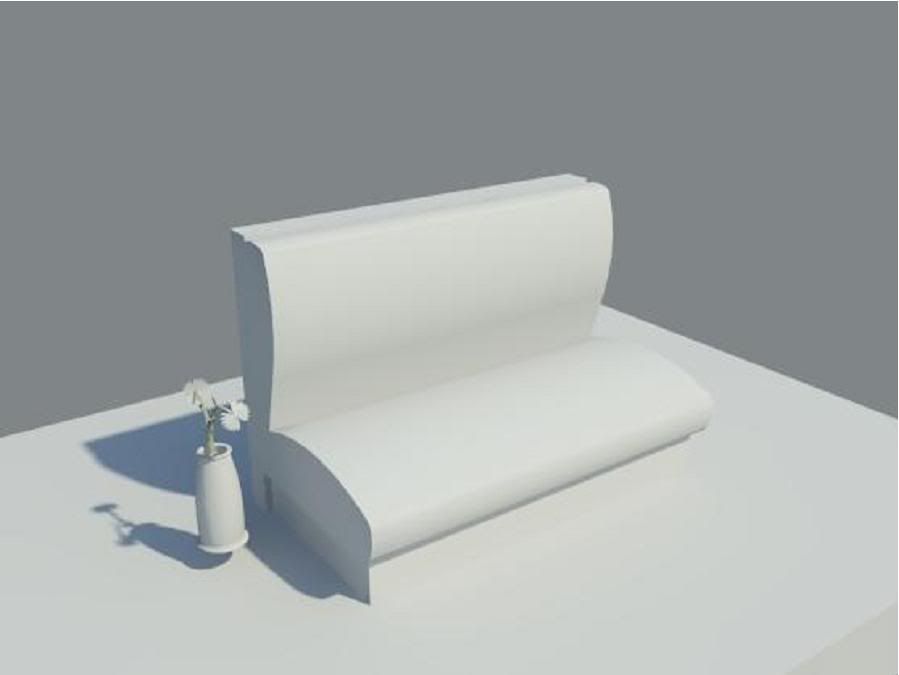
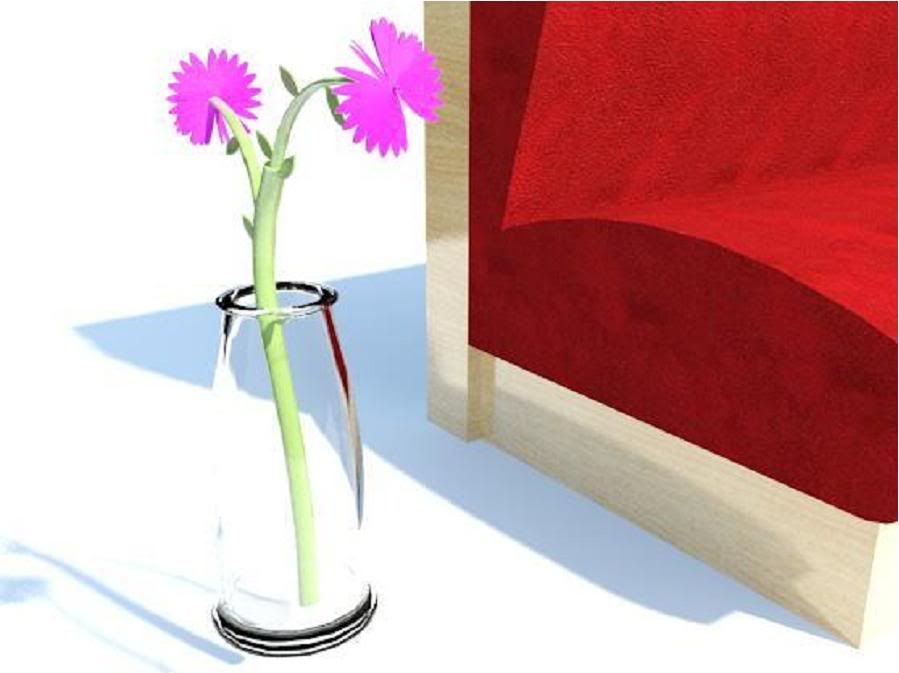
Here are the two (low quality) renderings I made during the video:

Rendering 1 - No Materials

Rendering 2 - With Materials

P.S. I would not suggest using those families she downloaded. I find the flower hideous and the chair could be made much better.