Clicky Web Analytics
presentation
documentation
creation
automation
bim after dark live
Showing posts with label Revit Render. Show all posts

Wednesday, February 20, 2013

Maxwell Render Plugin for Revit

For me, this is huge!  I remember when Revit first integrated the Mental Ray rendering engine and how huge that was... but linking the power of Maxwell Render directly with Revit is a major step for Revit presentation graphics....  Now, I hope this will open the door for other rendering engines :: cough cough :: VRay  :: cough ::....


Revit users can now enjoy this new comfortable and timesaving workflow for editing and rendering scenes, using Maxwell Render directly from the Revit interface. Here are a few of the highlights:
  • Compatibility with Revit 2012 and 2013 - any edition
  • Support for Revit lights including IES
  • Support for many built-in Revit materials
  • Ability to override scene materials with MXM files
  • Maxwell Grass
  • Multilight read-back: changes made to lights in Multilight can be imported back into the Revit scene
  • Easy access to the Maxwell material gallery directly from inside the Revit UI
 For full release notes and plugin user guide please refer to our support center here
 The Revit plugin is free to all of our customers and is available for download now from the customer gateway. If you cannot log-in or do not know your password please contact us here.


Wednesday, November 30, 2011

Revit Tip - Export Rendered Images Without a Background

For some of you this might be common knowledge but it is a great tip to keep in mind when rendering.  If you are constantly rendering with a white background and Photo-shopping the building into a site image or an image of the sky by using that dreadful magic wand or the polygon selector... STOP NOW!

All you have to do it export the rendered image (if it is rendered with a white background) as a .PNG file.  Open it in Photoshop and you will see the image has already been cropped and cleaned up and ready for your background image.

**** Edit  ****

Luke, over at What Revit Wants, dives further into this and explains how exporting to a TIFF file allows for an easy separation between the background and the model elements. This is very useful if you rendered with a background image or a sky, etc...

Click here to check out Luke's post...

Friday, April 29, 2011

Revit and the i7 Processor - Rendering Results

All I can say is wow...

I built a new machine about a month ago and have been using it quite a bit.  Until this week I have not really done to many renderings with it.  Well, all I can say is wow....

A prime example are these two draft (test) images:


The image above is before any touching up and photoshopping (straight out of Revit).  It took 1 hour and 12 minutes on Best.  Interior with artificial and sun.  I can't wait to go at this bad boy with Photoshop.

The image above took 12 minutes!  On BEST.  Interior with Sunlight only.

I ran some other test renderings and compared them to my Macbook Pro.  Here is the result.  I did not save the image but it was an exterior rendering of a library I designed last year (lots of furniture inside, curtain wall, water, blah blah) .  The image was renders on medium, exterior with sunlight only (Revit Architecture 2011)

Macbook Pro : 12 minutes and 37 Seconds.
  • Intel Dual Core 2.4ghz
  • 4 GB ram
  • Nvidia 8600m GT
  • Windows 7 64 bit Home Premium
Custom Built Machine : 3 Minutes and 16 Seconds
  • Intel Core i7 870 - 2.9Ghz (not overclocked for this test)
  • 16GB of Ram
  • AMD Radeon HD 6800 Series (1GB)
  • Windows 7 64bit Home Premium
So the custom built machine (which cost all but 1100 bucks) destroyed the Macbook Pro (which cost about 2100 bucks).  Let that be a lesson to you.  Of course, the Macbook Pro is still very important in my arsenal because of the portability.  

For those of you who would like to build a custom machine let me know in the comments and I will post the specs in a future post.

Monday, April 20, 2009

Revit 2010 vs. Revit 2009 - Rendering

8 comments
All over the blogosphere and the internet there is talk about the rendering speed on Revit 2009 versus the rendering speed on Revit 2010. I took it upon myself to run a few tests of my own. Long behold, Revit 2010 WON!

First, here are the specs of the machine I rendering on:
  • 15.4" Macbook Pro
  • Windows Vista Home Premium 64bit (Bootcamp 2.1)
  • 4gb Ram
  • Intel Dual Core 2.4
I had no other programs running. I first ran the render with Revit 2009. The settings for both rendering were identical:
  • Quality - Medium ( I didn't feel like sitting there all day)
  • Resolution - Screen (1180 x 537)
  • Lighting - Exterior (Sun only)
And the results:
  • Revit 2009 = 6:38
  • Revit 2010 = 4:57
That is a total increase on rendering time of 1.41. I ran the test a few more times and it came out to the exact same numbers. If i did my math correct that is a 25% increase in rendering time. Therefore, if this stays constant a 1 hour render in Revit 2009 will only take 45 minutes in 2010. It is getting there... If they would only introduce multi-core support for Revit rendering...
My second test (same scene and settings except for Quality being set at Best):
  • Revit 2009 = 4:5:36
  • Revit 2010 = 3:10:58

Roughly, 25% increase! Looks to be constant!


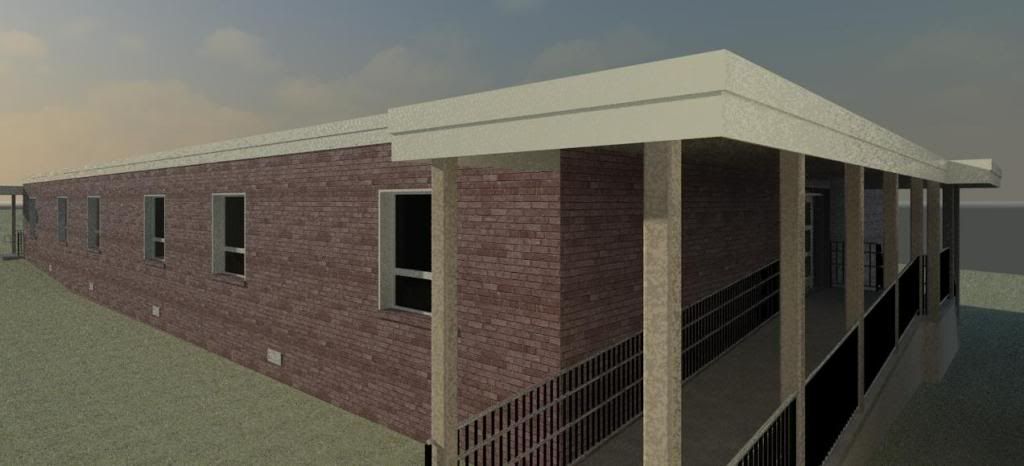
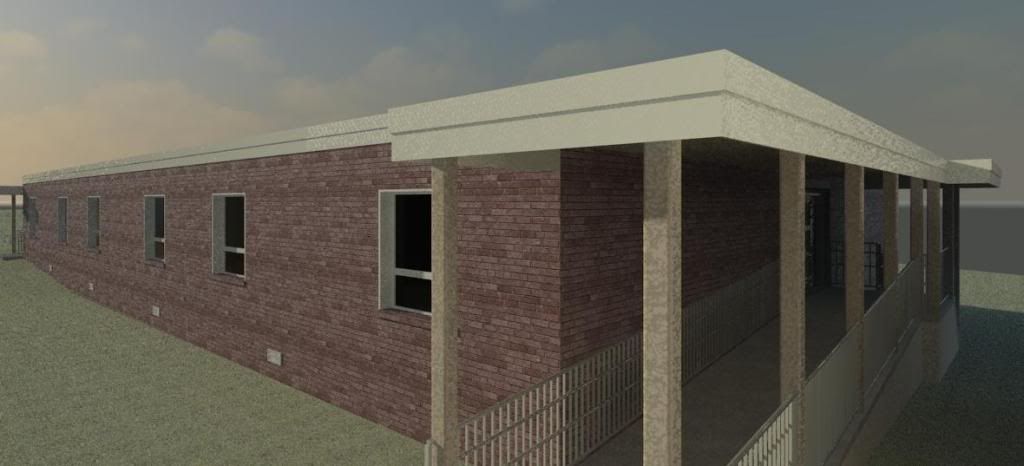
Here are the images that were rendered (these are on Medium Quality):
Perhaps I will do a few more studies adding in artificial lighting and different factors. Furthermore, we have a number to spit out when the conversation about how much "faster" the new Revit is. I believe I am the first one to do a full out bench mark test and publish it. So feel free to spread it around!

Sunday, February 22, 2009

Rendering an Interior Scene with Sun Only.

7 comments
I received an email from a man named Greg (thanks for the question!) who asked a question about my renderings on this blog. He asked about how I managed to get the sun light to look so bright and hit the building perfectly.

There are lots and lots of factors that effect the way a rendering will turn out, but there is one that always seems to be the most common factor, the placement of the sun. This may seem simply and silly, but when you have no artificial lighting it is very important. I made a new tutorial for Greg and everyone else to see.

Basics of Rendering Interiors with Sun Only.


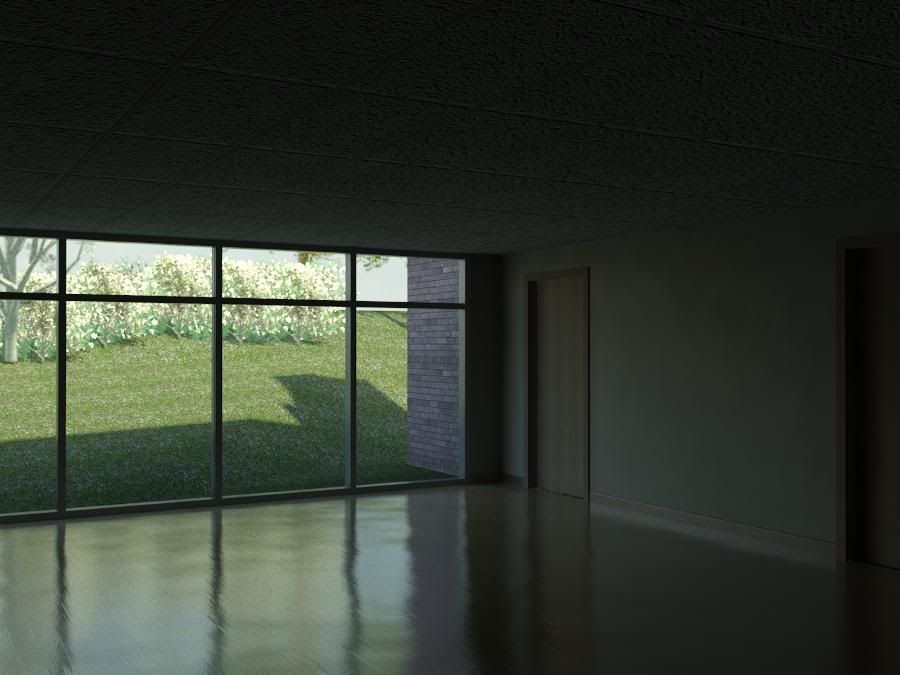
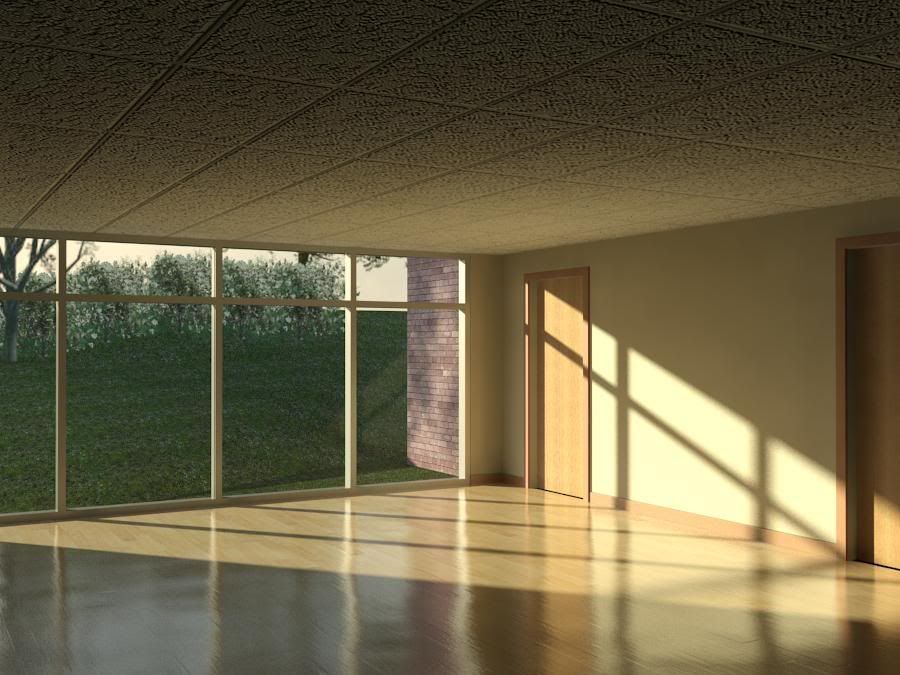
Here are the images I rendered:

The Basics of Rendering - Dark

The Basics of Rendering - Light

Thanks again to Greg for the question. This is exactly how I wanted and planned the site to be run. Lots of questions and lots of video answers!