- Compatibility with Revit 2012 and 2013 - any edition
- Support for Revit lights including IES
- Support for many built-in Revit materials
- Ability to override scene materials with MXM files
- Maxwell Grass
- Multilight read-back: changes made to lights in Multilight can be imported back into the Revit scene
- Easy access to the Maxwell material gallery directly from inside the Revit UI
Wednesday, February 20, 2013
Maxwell Render Plugin for Revit
Tuesday, July 28, 2009
10 Rendering Tips
10 Rendering Tips
Continuing the series of 10 quick tips, below are 10 tips for rendering in Revit I would like to pass along…
1. Material with Image Transparency
The “Plastic” Material type contains an option for “Render Appearance”, “Type”, “Plastic Transparent”. Along with this you can set the “Color” to “Image File” to utilize an image in the material. With this combination you can make varied transparent materials containing image files.
2. Rendering Lights at Draft Quality?
When rendering at a quality below “Medium”, you may notice artificial lights “Light Source Definition Shape” do not fully match the shape in the family. To have the artificial light shape fully calculated, render at “Medium” quality or above. For additional information I have included the technical solution link below:
Light source definition shape does not match rendering
3. Section Box and Rendering Times
For more complex views, you can reduce the rendering times by enabling the section box in the view. With the section box active, only objects that fall within the section box will be rendered. This includes objects such as daylight portals or artificial lights. For additional information I have included the technical solution link below:
Rendering only objects in current view or linked file
4. Far Clip and Rendering Views
If utilizing a “Far Clip Offset” in a view to render, keep in mind the offset will not be calculated in the rendering extents. The entire view range is calculated in a view when rendering. If you need to exclude something in the distance, use a section box instead from the process in tip #3 above.
Sunday, February 22, 2009
Rendering an Interior Scene with Sun Only.
There are lots and lots of factors that effect the way a rendering will turn out, but there is one that always seems to be the most common factor, the placement of the sun. This may seem simply and silly, but when you have no artificial lighting it is very important. I made a new tutorial for Greg and everyone else to see.
Basics of Rendering Interiors with Sun Only.
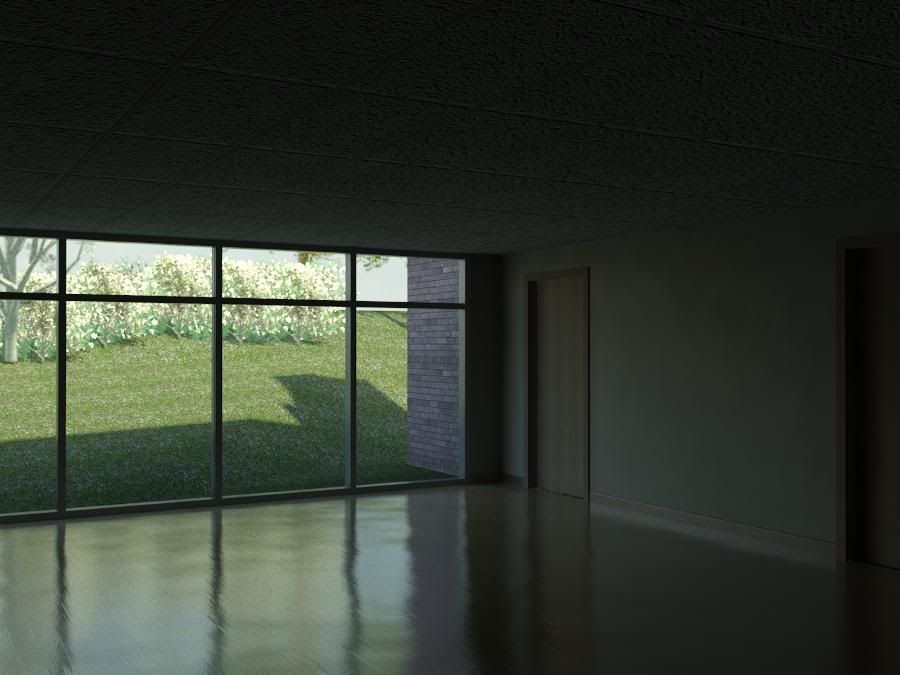
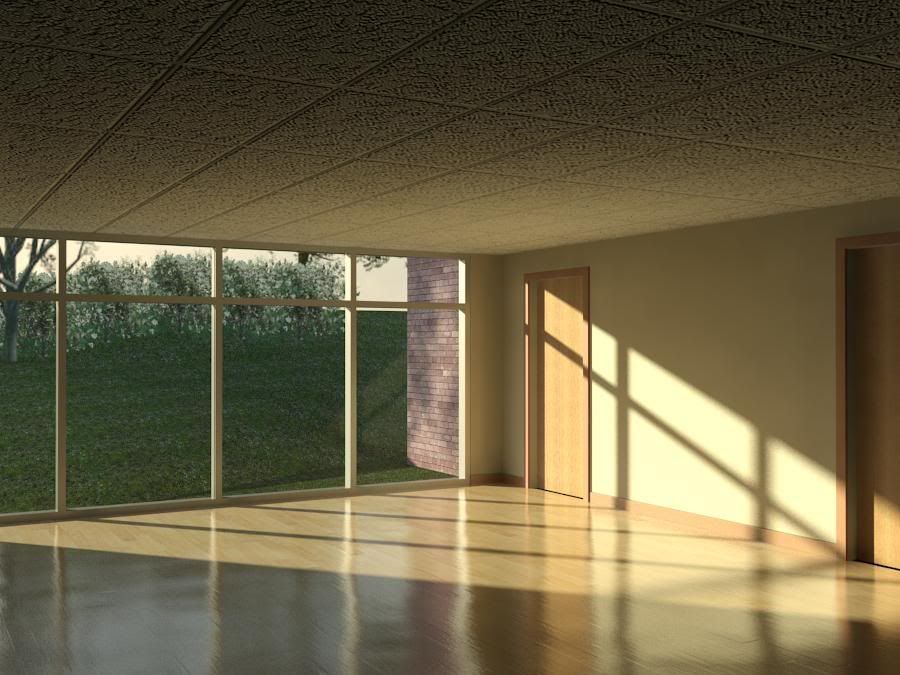
Here are the images I rendered:
The Basics of Rendering - Dark
The Basics of Rendering - Light
Thanks again to Greg for the question. This is exactly how I wanted and planned the site to be run. Lots of questions and lots of video answers!
The Revit Kid.com! by Jeffrey A. Pinheiro is licensed under a Creative Commons Attribution-NonCommercial-NoDerivs 3.0 Unported License. Based on a work at The Revit Kid.com.