Clicky Web Analytics
presentation
documentation
creation
automation
bim after dark live
Showing posts with label revit presentation. Show all posts

Tuesday, October 18, 2022

Modern Kitchen Renovation Series - The Client Meeting (Episode 18 - The Finale)


The final episode of our modern kitchen renovation series is here....

In episode 18 of our modern kitchen renovation series we will end this season by presenting all of our hard work to the clients!  The client presentation is something that many of you dread, I know...  Well, I am hoping this episode shows you how all of these fantastic tools we have can make it a bit easier.  From Revit to Enscape to Polycam, and back... you will see me use every tool in the toolbox to effectively present my design to my clients ... 


Wednesday, October 12, 2022

Modern Kitchen Renovation Series - Revit Presentation Views and Boards (Episode 17)


In episode 17 of our modern kitchen renovation series we will be making our final preparations for a meeting with the client by creating Revit presentation views and boards.  I will walk you though how I use view templates, my graphics settings, how I export my views, how I add a little stylish touch, and then pulling them all together into a printable board... 


Wednesday, September 19, 2018

Case Study - Rocky Mountain Modern House


Even though this project is from a couple years back I’ve been wanting to use it as a case study and share it on the blog since it’s completion.

Why?

Because this project and the initial presentation illustrates all of the facets of Revit for presentation style graphics in one deliverable.  What I’d like to do in this blog post is break down the presentation page by page and give a little background on what technique, tip, or tick was used to produce the graphics (ie. floor plan, elevation, diagram, etc…).

First, I’d like to give a little background on the project itself …

Continue reading to view the “Rocky Mountain Modern” Case Study…


Wednesday, July 11, 2018

Enscape3D - Free Sample Projects and Files


Photo courtesy of Enscape3D.com

Last year I published a post that explained why Enscape3D had become my virtual reality (VR) software of choice.  If you missed it, you can read the "Virtual Reality and Revit" review post by clicking here.

Well, fast forward to today and Enscape3D is still my VR program of choice for many of the same reasons I mentioned last year.  Of course, the folks over at Enscape3D have done a great job adding new features and improving the software since then.  Today I just wanted to point out a little-known resource available on the Enscape3D website...

Continue reading to find out about the free Enscape3D sample projects and where to find them....


Thursday, February 6, 2014

BIM After Dark - Ultimate Gallery


BIM After Dark has now been live for almost two months. The concept of "BIM Can be Sexy" and "BIM for design" has really began to surface and develop in my mind throughout the process of creating BIM After Dark and discussion with you, my readers.

I wanted to create a post to document the images I have created (and hopefully you will create) using techniques I illustrate in BIM After Dark: Volume 1.  I hope to continue adding images (created by both you and I).  Every image below was made using Revit, Photoshop, and BIM After Dark. (oh, some images may have required a pen or pencil too).

If you have not done so yet, head over to my BIM After Dark website to purchase your copy of the video series (or check out the free sample video).  If you have done so, email me images you have created using the techniques within the videos and I will add them to this post for everyone to see!

BIM After Dark: Image Gallery

(Click to enlarge or start slideshow)
...be patient while they load...


Tuesday, August 6, 2013

Revit Tutorial - Adding Depth to Your Elevations


A buddy of mine called me up asking about an old tutorial that he stumbled upon here on the site.  The tutorial, unfortunately, had some bad links in it.  I linked to a blogger who no longer blogs.  I wish I could remember exactly what the post was about but I thought it was a good topic to make a video on.

There are many different ways to create "depth" in your elevations and sections.  Unfortunately, none of them are done automatically (unless you are using shadows or ambient shadows).  One day, in my wildest dreams, Revit will automatically create outlines and view depth in elevations based on clipping distances...

Until then, here are some of my everyday tips for elevation and section view depths...

Tuesday, April 3, 2012

The Revit Kid Project - Istanbul Waterfront (Revit and Prezi)

I took a stab at using Prezi for my last Studio presentation.  I have to say that is is very nice.  Working inside the browser is an interesting way to do things but it worked.  It was not hard to learn and they offer some Student benefits (500mb free storage I believe).  Not to mention when you are finished you can download the presentation as a Flash file and can run it on virtually any computer.  

The workflow ended up being pretty simple:  Sketches, drawings, Revit, Prezi....

Another great feature is the ability to pick and zoom freely (beyond the "paths" you create".  This worked great for discussions with the jury after my presentation.


Wednesday, May 4, 2011

The Revit Kid Project - Mantra Hotel


I posted a few days ago about some renderings I was doing and a project I was working.  I also posted some of the boards from the first phase of this project. Well, it is finished!  I presented it on Monday.  I decided to share it all with you.  I think this is a great example of the wide variety of presentation options Revit gives you.  All of these images are native Revit (exports or renderings).  They were post processed in Photoshop and I created a Powerpoint. No other software was used.


First, click here to see the entire slide show on slideshare... (Note: There are some fade transition effects in the real Powerpoint that add a nice touch to it... you can't see these on slideshare...)

I also created a Photobucket album so you can see the original resolution images...


Comments and questions are welcomed!!!

Saturday, August 15, 2009

Revit Classroom Workflow - Step 6

Presentation

I received and email asking about how I would/have created presentation style boards and images in Revit. Thanks to this email I finally am finishing up the very last step in my Revit Classroom Workflow!

The project I am going to use as an example is my very first Revit studio project. This is the project that forced me to learn everything I know now. It was also completed on the eve of the Revit 2009 release (hence the very first release with awesome looking renderings). As it is with every project in Revit if I knew then what I know now there would be many things I would have done differently. Nonetheless, I am still proud of it. I thought this would be a perfect example of a presentation board.

The project called out for two 20"x30" presentation boards and a set of drawings to go along with it. I fiddled with different ways to present my Revit models and found my favorite was with renderings (of course, the WOW factor always wins).

With very little knowledge of Revit and the help of videos online I was able to crank out a ton of renderings. How did I have time during a design studio to Render all 20 or so renderings, you ask? Well... good old Revit sped up the CD process and I was finished two weeks ahead of my personal schedule.

My computer stayed on for many nights and days rendering away. From those 20 to 30 renderings I moved out of Revit and over to Photoshop.

I sketched out some ideas of layouts for the board and where I would place all the renderings. (Wow, so even after all the design and CD's I am still sketching by hand? Yet people still argue Revit eliminates paper and pencil). With simple cropping, editing, and very basic photoshop knowledge I was able to create the layout I was looking for.


I hope these little examples will sort of give you an idea of what you can do with your intelligent Revit model. Using Photoshop for the layout and editing, in my opinion, allows for much more freedom of the renderings, printing, cropping, and overall graphics. I know some students who have tried creating layouts like this within a Revit sheet. I would not recommend it for you will be asking for a head ache.

Here is another example of something cool you can do with rendering in Revit and a little photoshop knowledge. I used this as a page in my portfolio but the idea could be used in presentation as well.

Wednesday, May 6, 2009

Revit Classroom Workflow - Step 5

0 comments
Pre-Presentation

The days before the dreaded "final review" are what makes and breaks an architecture student.  Essentially, it consumes the entire semester and becomes the most important piece of school work to finish.  We have all heard and told our sleepless, caffeine filled, and endless final review stories.  Sadly, with Revit, those nights will be shorter but may not go away.  On the positive side, you will most likely have time to at least sleep an hour or two before presenting.

Thankfully, because Revit forced your mind to think in many dimensions it has never thought in before your building will actually make sense.  The rush to coordinate your CAD elevations and plans, while building a physical model between every few lines drawn in CAD, have been eliminated.  Your elevations and plans will always match... because they are all created from the same model!  I know, how great is that?  This will give you tons of free time to build your physical models while rendering some photo-realistic scenes in Revit.

Here are some of my personal tips to efficiently and intelligently manage your time while using Revit in the classroom:
  • Create a Schedule: This could easily apply to a student not using Revit, but I will apply it to one using Revit.  I find it to be so very crucial to create a simple schedule the day you receive the program of a project. Set concrete dates as to when you plan to finish each step of the project.  Following this schedule will not only help you finish your work on time but also prepare you for the real world (where everything depends on these stupid schedules).  Also, don't forget to add a good week extra if you plan to render in Revit (Until Autodesk addresses rendering times the way they should be, be prepared to wait.)
  • Socialize and Discuss:  Due to the easy nature of making changes in Revit and it's ability yo easily "tell the story" of your building discussion is key.  Throughout the entire design process discuss and show all of your ideas with your peers and professor.  I have learned that something as simple as another student saying, "Um... why's that door over there?" will force you to think more about your building and why you designed what you did.  It also gives you a chance to pick up on mistakes that could easily be breezed over until you pin that drawing to the wall.
  • Print "Check-Sets":  You are now using a program that will have you way ahead of schedule when creating sheets.  Revit has the ability to pump out sheets like no other program.  You pay a pricey tuition to be in that school... USE THEIR PAPER.  Print everything you can as many times as you want.  Far too many times I see fellow students waiting till last minute to print.  The first set they print is what goes on the wall and guess what... they look like crap!  Line weights are all wrong, viewports and cutting things off, and the titleblock isn't even centered.  Take the time to print throughout the entire design process.  Grab a red pen... pretend you are your boss and redline the crap out of it!
Those are a few of my tips that have really helped me in the studio.  If you were to follow the Revit Classroom Workflow model accordingly and create a schedule along with it this step will not be the dreaded all nighter stories we all know and love.  The possibility is still there and it is pretty difficult to avoid the good old tradition of waiting till the las minute but Revit will help.  Consider the construction documents to be done by this step and you are golden.  

Now it's time to add the good old wow factor in our last step of the Revit Classroom Workflow... To be continued..


Monday, April 27, 2009

Revit 2010 - First Project.

2 comments
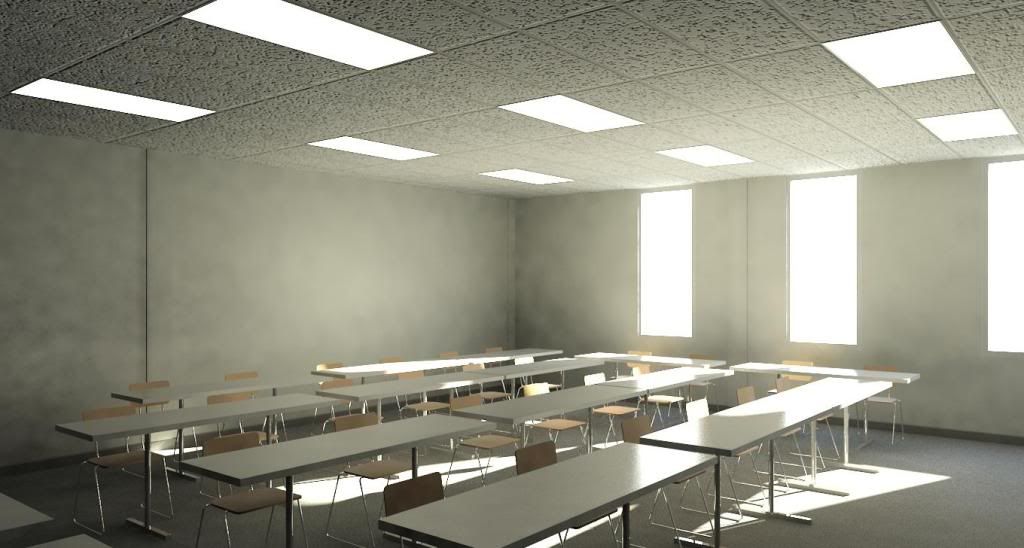
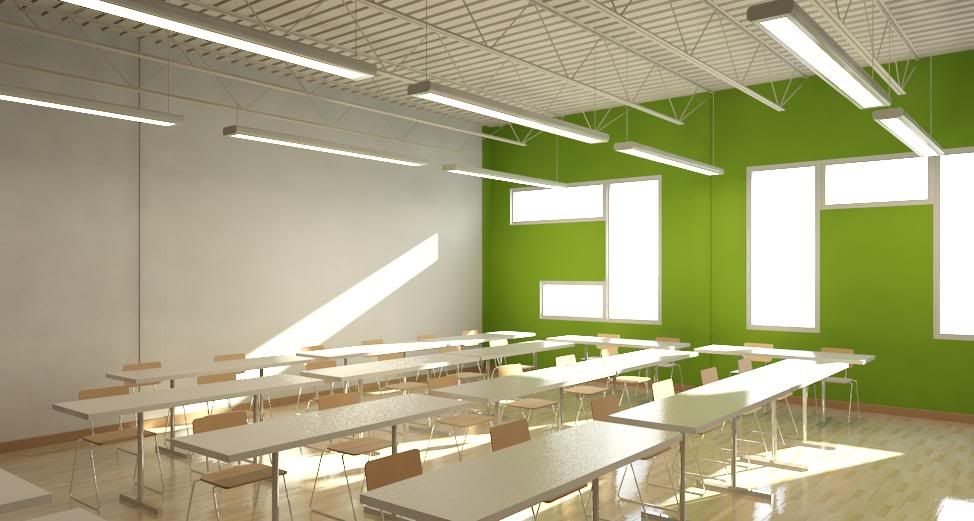
Here is the first project I did on Revit 2010.  Finished it early last week.

The basis of the project was to produce some nice renderings and run some environmental analysis's for my classroom.  I did not get detailed as far as construction documents and plans, etc...  This was only for a speech I have to do tomorrow.  The speech is going to be a persuasive speech about why I think the class should think, build, and design green.

Did I mention that this is for a Business Communication class?  Well, it is.  How about that... using Revit for a business communication class powerpoint.  Who would have thought.

Here are the images I rendered:
I figured I would use these images as an introductory "attention grabber" explaining how the class would look if it was green.  

I also used Green Building Studio to run some energy analysis of the classroom.  Using green materials and coating the glass ends up saving the school roughly 1000 dollars a year... per classroom.

Just thought I would share with you one of the many ways you can use Revit in school.   Even if you are not in a design studio.