Clicky Web Analytics
presentation
documentation
creation
automation
bim after dark live
Showing posts with label rcw. Show all posts

Monday, February 22, 2010

Revit Classroom Workflow - Practice What I Preach

Hello readers,

First, I would like to apalogize for the slacking of posts for the past few weeks. It turns out that school is taking up quite a bit of my time. Those of you in a Design Studio along with 4 or more other classes know what I mean... I am posting every chance I get.

Second, I am FINALLY BACK IN THE DESIGN STUDIO! Very excited to be designing in the studio again (it has been a few semesters because of graduating and tranferring, etc...). Anyways, for those of you who might remember way back when I began the blog (over a year and 300,000 hits ago), I created a little series called Revit Classroom Workflow. Well, I created this series after finishing my second semester using Revit in the Studio. Now, I am putting my workflow to the test. Without even realizing it, I have already finished the first step "Conceptualization". The best part about it is that I did not even think about my workflow chart until after I finished my concept vignette in the studio.

What I have decided to do is to track my studio project on the blog and parralell it with the Revit Classroom Workflow Chart I created. So, here we go...

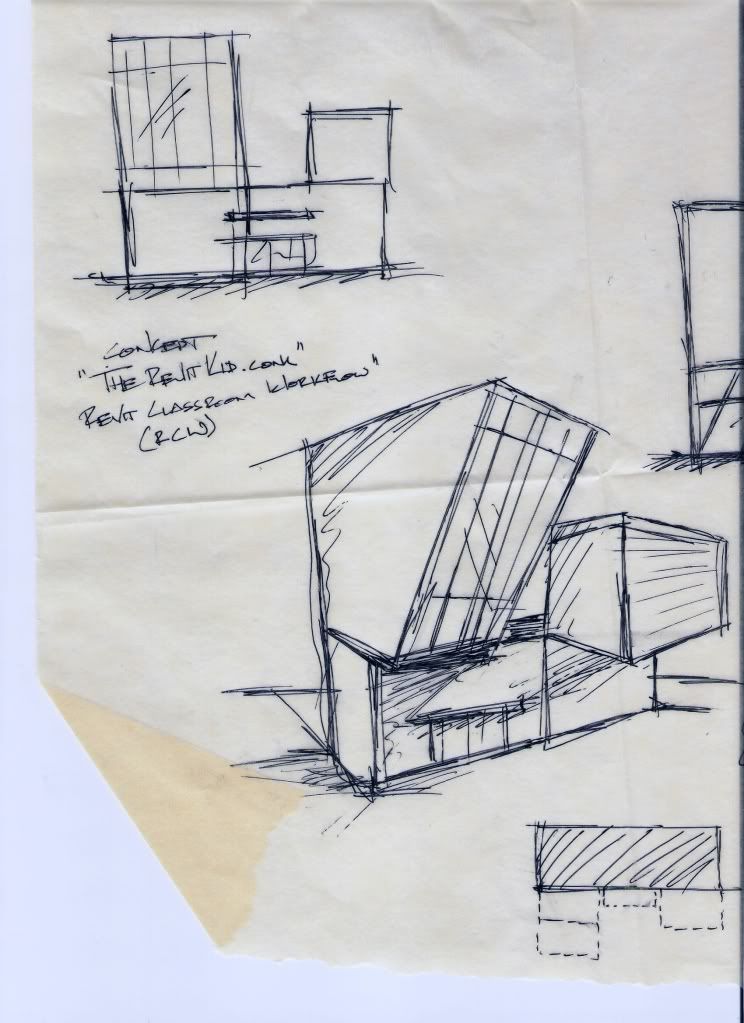
The first step, Conceptualization, worked out great. My professor gave instructions for the vignette that require a site analysis as well as two conceptual massing models (3D and physical). Just as the Revit Classroom Workflow states I sketched out a bunch of massing ideas. I then went into Revit and created some of the more refined masses using a simple model in place family.

I then used my Revit models to create some 8.5"x11" sheets of plans and elevations printed to the scale of my model. Finally, it was simply a matter of cutting out the pieces using my Revit model and creating a physical model (I only used the main faces from the Revit model, this way I got a really good physical feel of my forms).

Here is a slide show of the second concept (most likely the one I am going with). Two images are from the Revit Model and the rest are of the physical model:


Saturday, August 15, 2009

Revit Classroom Workflow - Step 6

Presentation

I received and email asking about how I would/have created presentation style boards and images in Revit. Thanks to this email I finally am finishing up the very last step in my Revit Classroom Workflow!

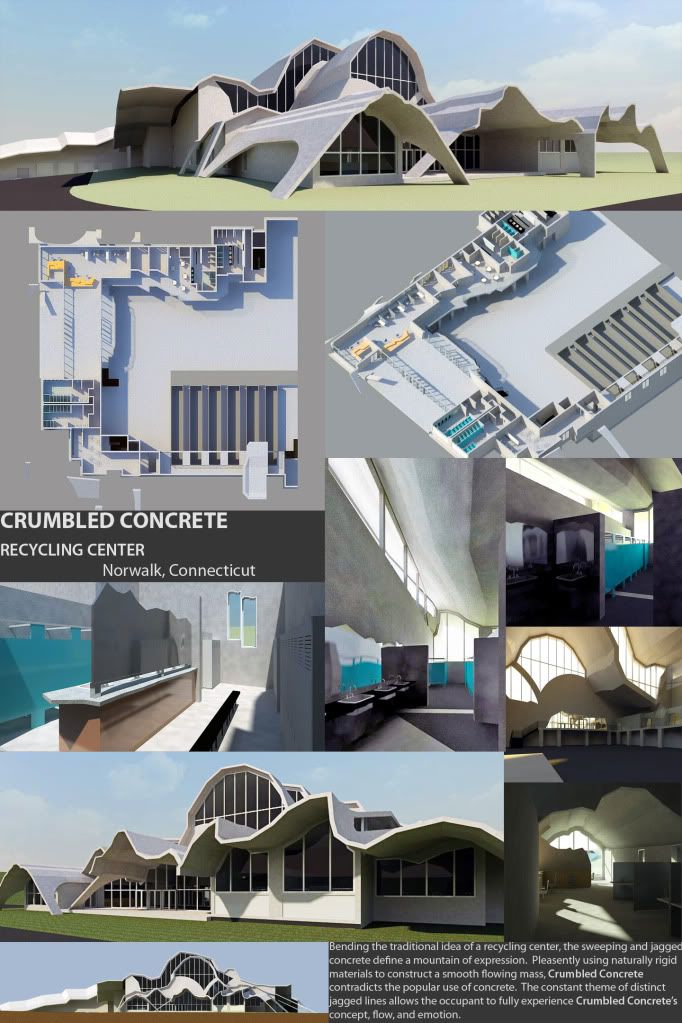
The project I am going to use as an example is my very first Revit studio project. This is the project that forced me to learn everything I know now. It was also completed on the eve of the Revit 2009 release (hence the very first release with awesome looking renderings). As it is with every project in Revit if I knew then what I know now there would be many things I would have done differently. Nonetheless, I am still proud of it. I thought this would be a perfect example of a presentation board.

The project called out for two 20"x30" presentation boards and a set of drawings to go along with it. I fiddled with different ways to present my Revit models and found my favorite was with renderings (of course, the WOW factor always wins).

With very little knowledge of Revit and the help of videos online I was able to crank out a ton of renderings. How did I have time during a design studio to Render all 20 or so renderings, you ask? Well... good old Revit sped up the CD process and I was finished two weeks ahead of my personal schedule.

My computer stayed on for many nights and days rendering away. From those 20 to 30 renderings I moved out of Revit and over to Photoshop.

I sketched out some ideas of layouts for the board and where I would place all the renderings. (Wow, so even after all the design and CD's I am still sketching by hand? Yet people still argue Revit eliminates paper and pencil). With simple cropping, editing, and very basic photoshop knowledge I was able to create the layout I was looking for.


I hope these little examples will sort of give you an idea of what you can do with your intelligent Revit model. Using Photoshop for the layout and editing, in my opinion, allows for much more freedom of the renderings, printing, cropping, and overall graphics. I know some students who have tried creating layouts like this within a Revit sheet. I would not recommend it for you will be asking for a head ache.

Here is another example of something cool you can do with rendering in Revit and a little photoshop knowledge. I used this as a page in my portfolio but the idea could be used in presentation as well.

Wednesday, May 6, 2009

Revit Classroom Workflow - Step 5

0 comments
Pre-Presentation

The days before the dreaded "final review" are what makes and breaks an architecture student.  Essentially, it consumes the entire semester and becomes the most important piece of school work to finish.  We have all heard and told our sleepless, caffeine filled, and endless final review stories.  Sadly, with Revit, those nights will be shorter but may not go away.  On the positive side, you will most likely have time to at least sleep an hour or two before presenting.

Thankfully, because Revit forced your mind to think in many dimensions it has never thought in before your building will actually make sense.  The rush to coordinate your CAD elevations and plans, while building a physical model between every few lines drawn in CAD, have been eliminated.  Your elevations and plans will always match... because they are all created from the same model!  I know, how great is that?  This will give you tons of free time to build your physical models while rendering some photo-realistic scenes in Revit.

Here are some of my personal tips to efficiently and intelligently manage your time while using Revit in the classroom:
  • Create a Schedule: This could easily apply to a student not using Revit, but I will apply it to one using Revit.  I find it to be so very crucial to create a simple schedule the day you receive the program of a project. Set concrete dates as to when you plan to finish each step of the project.  Following this schedule will not only help you finish your work on time but also prepare you for the real world (where everything depends on these stupid schedules).  Also, don't forget to add a good week extra if you plan to render in Revit (Until Autodesk addresses rendering times the way they should be, be prepared to wait.)
  • Socialize and Discuss:  Due to the easy nature of making changes in Revit and it's ability yo easily "tell the story" of your building discussion is key.  Throughout the entire design process discuss and show all of your ideas with your peers and professor.  I have learned that something as simple as another student saying, "Um... why's that door over there?" will force you to think more about your building and why you designed what you did.  It also gives you a chance to pick up on mistakes that could easily be breezed over until you pin that drawing to the wall.
  • Print "Check-Sets":  You are now using a program that will have you way ahead of schedule when creating sheets.  Revit has the ability to pump out sheets like no other program.  You pay a pricey tuition to be in that school... USE THEIR PAPER.  Print everything you can as many times as you want.  Far too many times I see fellow students waiting till last minute to print.  The first set they print is what goes on the wall and guess what... they look like crap!  Line weights are all wrong, viewports and cutting things off, and the titleblock isn't even centered.  Take the time to print throughout the entire design process.  Grab a red pen... pretend you are your boss and redline the crap out of it!
Those are a few of my tips that have really helped me in the studio.  If you were to follow the Revit Classroom Workflow model accordingly and create a schedule along with it this step will not be the dreaded all nighter stories we all know and love.  The possibility is still there and it is pretty difficult to avoid the good old tradition of waiting till the las minute but Revit will help.  Consider the construction documents to be done by this step and you are golden.  

Now it's time to add the good old wow factor in our last step of the Revit Classroom Workflow... To be continued..


Wednesday, April 29, 2009

Revit Classroom Workflow - Step 4

0 comments
Implementation/Documentation

At the completion of step three of our Revit Classroom Workflow segment you should have a clearly defined Revit model.  You have already explored many different material, structural, and mechanical options.  You've analyzed these options graphically and numerically.  Most importantly, you've extracted priceless information from your model and, in doing so, have become more intimate with your building/concept at a much deeper level than ever before.

The next step, implementation/documentation, will vary depending on the program requirements of your school.  Some programs may require a complete set of detailed construction documents, while others won't even require dimensions.  Conversely, in the professional world this step is crucial.  Revit excels during the construction document process.  Your model, by now, should be thought out and developed enough so that when you cut a section it is correct.  Not necessarily to the detail of sill plates and nuts and bolts (see this tutorial).  But a generic solid filled section should be created.  There are still days when I site back and marvel over the amount of sheets that I generate in such a short period of time during this step.

A great tip to keep in mind during this stage is utilizing some drafting views.  This will apply more for professional practice but is great to know as a student.  Drafting views have great advantaged when being used on typical details.  For example, handicap toilet details will rarely ever change.  Take the time to draft some beautiful typical details using wide lines for walls (keeping it generic so it can apply to many cases).  Simply import them (or add them to your Revit template).  Drag them on a sheet and call them out! (See this tutorial). 

I am not going to explain how to create construction documents and what is required.  That's for you to know and learn in school.  I will explain some of the advantages you will experience during the C.D. phase because you are using Revit:
  • Very quickly create sheets and paper.
  • Instantly create details and sections in an place or direction. (Who knows, your professor may ask you to cut a section on a 30 degree angle... easy!)
  • Elevations are already created.  Simply dimension, note, and detail as needed. (if you have a building with angled masses Revit is priceless.)  Also, light shadows add great depth to your elevations.
  • Instantly create and coordinate schedules.
  • Coordination of all callouts is done for you.  No more printing and redlining over and over again because you consistently forget to change that one section bubble.
  • If a spec book, or project manual, is required, E-Specs coordinates your model with your project manual.
  • If a budget is set for the project material take-offs, automatic scheduling, and Cost-X will make your life much easier.
  • If you must coordinate MEP, Structure, and Architecture, NavisWorks can be used for a variety of outcomes.  From collision detection to presentations.
These are only the main advantages I could think of when using Revit to create construction documents.  The proper usage of all of these programs and Revit will greatly help you in the classroom and in the work force.  The ability to create construction documents with such ease and speed, in my opinion, is changing the percentage of lump sum pay an architect will charge for that phase.  Leaving more time and money for design.

Stay tuned for the next step on our chart!

Saturday, April 25, 2009

Autodesk NavisWorks

0 comments
The next program to introduce you all to before the next step in our Revit Classroom Workflow is called NavisWorks. First, here is a brief summary of the program and what it does:

By combining the high-quality 3D design data created by AutoCAD® software, Revit®-based applications, and Autodesk® Inventor® software with geometry and data from other design tools, Autodesk Navisworks project review products enable a dynamic real-time, whole-project view for:
  • Effective 3D coordination analysis
  • 4D planning simulation
  • Accurate photorealistic visualization
The aggregated whole-project view can be published in both Autodesk Navisworks native NWD format and 3D DWF™ format, giving all stakeholders access to the virtual project with Autodesk Navisworks Freedom.

Did I mention that Navisworks Manage is completely free for students through the Autodesk Student Community? Well, it is. I will get more in depth about how Navisworks can create advantages for you in the Studio during the next step of the Revit Classroom Workflow. To me, Navisworks is sort of the graphical representation of BIM. It visually shows the collaboration of all parties and how they all contribute to the process. As usual, here is a bunch of links for you all to learn about Autodesk NavisWorks:

Friday, April 24, 2009

E-Specs

0 comments
E-Specs is another program that you may never use in your professional career, but it will have you understanding Revit much better.  Personally, I believe it should be used in profession career.  I will get more into how it will be applied during our Revit Classroom Workflow.  For those of you do not know... Revit is a Database.  I know what you're thinking.  Microsoft Access?  Database?  Believe it or not, attached to all those pretty 3D models you are creating is a giant list of ID numbers and parameters.  

"e-SPECS for Revit interfaces with Revit's parametric database, instantly updating your project specifications to the requirements of the building model. Insert a wall, door, window, or any other building object into your Revit model and instantly update your project manual with the appropriate specifications. Any changes you make to the designs will automatically be incorporated into the specification manual. And with the click of the mouse, you can access all the other functionality that e-SPECS provides to update your sections on-the-fly, post project notes, review section markups and more."

Basically, e-Specs uses all of those complicated ID numbers and parameters to create and edit your specifications.  Linking your office or typical specs with your Revit file makes it easy to update these specs.  Additionally, when working in teams, it will allow team members to add comments and redlines into the project manual.

Tuesday, April 21, 2009

Cost-X

0 comments
Carrying along with our Revit Classroom Workflow chart I would like to introduce a new program to you all.   Before reading about the program and thinking to yourself, "what do I need this for... show me a tutorial damnit!", I would like to explain why I think it is important to know this program.  Ultimately, as an architectural student and practicing architect you may never use the program.

During the BIM process a program such as Cost-X will have great advantages.  Our job, as architects, is to provide the contractor or person using Cost-X with a usable building model.  What is a usable building model?  Well, that is precisely why you should know the program and how to use it.  In the next step of our Revit Classroom Workflow I will explain how to incorporate the program into your design studio.  This will allow you to navigate the program and understand how it work.  It will also give you cost estimates if needed for the studio project.

Some great links:


Friday, April 17, 2009

Revit Classroom Workflow - Step 3

0 comments
Analyze

Analyzation of your building could require many programs and will force the you, the designer, to think about many other issues and aspects of your project besides the actual design.  What I mean by this is that the normal student will pick a material or two and be told  steel and concrete will work and then move on.  Unless the structure is given and restricted then there are many options to go from but yet every design course I have been in a majority of the class has the same wall sections and structure.

The use of the programs I introduced combined with a well built and thought out Revit model will allow  you to explore many different options for materials and for structure.  You will also be able to analyze graphically the effects changing the structure and materials will have on the building, concept, and  environment.

Structural Analysis:

Revit Structure and Robot Structural Analysis are completely free to students.  Why would you not download it and give it a try?  With basic structural knowledge learned in an introductory structures class you will be able to explore and understand many different structural options for your building.  If the professor requires a certain type of structure these programs can still be used to analyze if the structure given will fail.  If you want to feed the "wow" factor, Robot can create some awesome images for your presentation.

The important thing to keep in mind when adding structure to your model is DO NOT OVER MODEL!  It is very easy to get carried away and before you know it you are creating a parametric bolt and nut assembly!  Exploring Robot Structural Analysis and getting familiar with the program will give you an idea as to HOW much needs to be modeled.  This is why I am introducing these programs to you.  Understanding how the programs analyze will save you lots of time and teach you how much you truly need to model.

How much structure that actually needs to be modeled is very project specific.  In Revit Architecture, the components under the "Structure" tab will most commonly be used.  In some cases studs and floor joists will be required.  For a architectural design student every stud and rim board will be overkill.  A simple preliminary analysis is all that is needed (in most cases the "Structures" tab will have you covered.  Ultimately, the importance of this step is how it will force your brain to think differently about you project.  You will think outside of the model and further the information that will be extracted from it.

Energy and Environmental Analysis:

To take full advantage of your Revit model there are lots of energy analysis programs out there. The three I introduces to you were:
Green Building Studio is the only one you cannot get for free as a student.  Although, you can get a sixty day free trial (enough time for the last month of the course to make studies).

Once again, the program used will effect the thought process of how you will create the Revit model.  I.E.S. is my personal favorite.  It has a plug-in directly inside of Revit and is very user friendly.  All of the programs have great features for a design studio.  For example, in all of the programs it is as simple as adding walls, windows, doors, and creating a room.  You know that Room command in Revit that creates an annoying blue box that you always end up clicking?  One of the functions of that blue box is to calculate volumes.  Now, with I.E.S. you can take that one Room and analyze the effects of many different window, walls, and HVAC options on your building (see tutorial on I.E.S. page.. email me if you want a tutorial with more clarification).  This process will induce thoughts new thoughts about your design and you can see its effects on the environment and how it will "live" before it is even built.

The process described may seem obvious and may seem like common sense to some.  If you keep all of the information I just talked about in mind while designing and creating your Revit Model your concept becomes more dynamic.  Your building will be more coherent to you and others while simultaneously an intelligent virtual model is being created.  A model that will simulate the "life" of your building and how it will "live" without even being built.  

Remember... BIM.. Building INFORMATION modeling.  Get information out of your model!!


Monday, April 13, 2009

Integrated Environmental Solutions.

3 comments
The third and final environmental analysis software I would like to introduce you too is Integrated Environmental Solutions.  This program is NOT by Autodesk... I know... crazy huh?  

I.E.S. offers a completely free version of a simple energy analysis called VE-Ware.  My favorite feature of this program is its compatibility with Revit.  It installs a plugin directly inside of Revit and with a few click you can make a simple energy usage and carbon emission analysis.  For participating schools the entire tool kit is free.  For students in non-participating schools they have a student offer (linked below).

With the free VE-Ware you will be able to:
  
1. Import geometry data
2. Tell it where your building is in the world
3. Define your: building type, construction materials, heating and cooling system types and room types
4. Press a button – automatic detailed thermal simulation is performed for you
5. Get output on: energy consumption, CO2 emissions and US benchmark against the Architecture 2030 Challenge
6. You can then easily modify your building and assess different options.

As far as ease of use and coherence go this program is very simple.

Here is a list of links:

Sunday, April 12, 2009

Autodesk - Green Building Studio

9 comments
The second environmental analysis program in our three part introduction series towards the Revit Classroom Workflow Chart.  

The Autodesk® Green Building Studio® web-based energy analysis service can help architects and designers perform whole building analysis, optimize energy efficiency, and work toward carbon neutrality earlier in the design process. With faster, more accurate energy analysis of building design proposals, architects and designers can work with sustainability in mind earlier in the process, plan proactively, and build better.

The best explanation for this program is are the videos on Autodesk's Website: See them here.

Very cool program.  Autodesk offers a sixty day free trial for students that are part of the Autodesk Student Community.

Saturday, April 11, 2009

Autodesk - Ecotect

0 comments
There are quite a few environmental analysis programs out there for Revit and BIM.  My personal favorite is Integrated Environmental Solutions because of its integration with Revit (I will introduce I.E.S. in the upcoming posts).  

First, here is a quick intro to Ecotect:

ECOTECT is a complete building design and environmental analysis tool that covers the full range of simulation and analysis functions required to truly understand how a building design will operate and perform. It finally allows designers to work easily in 3D and apply all the tools necessary for an energy efficient and sustainable future. Check out its features to learn more.

Once again, Ecotect is completely free for students who belong to the Autodesk Student Community.  I think what I will do is introduce the three major environmental analysis programs within the next few days.

After all of the introductions I will personally compare and contrast the three programs.

Links for Ecotect:
At the end of this software introduction series I will connect the dots with the Revit Classroom Workflow Chart.

Thursday, April 9, 2009

Autodesk - Robot Structural Analysis

0 comments
The first program on the Revit Classroom Workflow Chart I would like to introduce you all to is Autodesk Robot Structural Analysis.  There are a few reasons why I added this program to the chart.  The first reason is that it is completely free for all students!

From Autodesk's Website:

Autodesk® Robot™ Structural Analysis Professional software offers powerful analysis with exceptional finite element auto-meshing capabilities, providing structural engineers with a faster means for tackling the most complex simulations and model calculations. Core features of Autodesk Robot Structural Analysis Professional include:
  • Seamless bidirectional links with Autodesk Revit Structure software
  • Advanced finite element auto-meshing capabilities
  • Wide range of analysis capabilities
  • State-of-the-art analysis solvers
  • Extensive output of analysis results
  • Multiple languages and units for global markets
  • Country-specific preferences and design codes
  • Integrated design solution for reinforced concrete and steel
  • Integrated workflow from structural analysis and design to fabrication drawings
  • Open and flexible API (application programming interface)

Obviously, unless you are a structural engineer some of this stuff is WAY overkill.  I find that the basic analyzations that could be produced are very helpful.  Especially to visually see the results.  For the designer, it is a great tool to really understand how your loads will be distributed and where they might be excessive.

The point I am trying to make is that you are taking the time to create this beautiful building information model... GET SOME INFORMATION OFF OF IT!

At your request I will go deeper into any of these programs that I am introducing.

Here is some more info on Autodesk® Robot™ Structural Analysis:

Wednesday, April 8, 2009

Trelligence Affinity

1 comments
I'd like to introduce you all to a program that people will love or hate. The program parallels with the Design segment of my Revit Classroom Workflow Chart.

Trelligence Affinity™, Affinity for ArchiCAD™, and Affinity for Revit™ is software focused on enhancing the early architectural design process with a unique programming, space planning and schematic design solution. Targeted at the worldwide architectural, engineering, construction and owner/developer (AECO) market, the Trelligence Affinity patent-pending software integrates with ArchiCAD from Graphisoft, Revit Architecture from Autodesk, and other design tools to extend the benefits of Building Information Modeling (BIM) - faster planning, less rework and better team collaboration - to the early design phases of complex building projects.

I say it will be loved or hated because many designers will feel as though these early schematic diagrams and space planning should be done like it has always been done. With pencil and paper. I too design with pencil and paper first. Although, I used this program for a day now and it has its advantages.  It is not meant to replace the pencil and paper atmosphere but to help in the further development of the pencil and paper drawings to the intelligent building model. Just another tool to add to the aresonal. Check it out for yourself and form your own opinion.

Trelligence Affinity Links:

Tuesday, April 7, 2009

Revit Classroom Workflow - Step 2

1 comments
Design

During the design phase of the Revit Classroom Workflow diagram the concept of your building is moulded into a semi-structured form.  I say "semi-structured" because this step is till very preliminary and will be changed frequently during the design process.  You must think of your building in three dimensions as a form and as a building now.  Walls, doors, windows, and flow of the building begin to be considered and thought about.

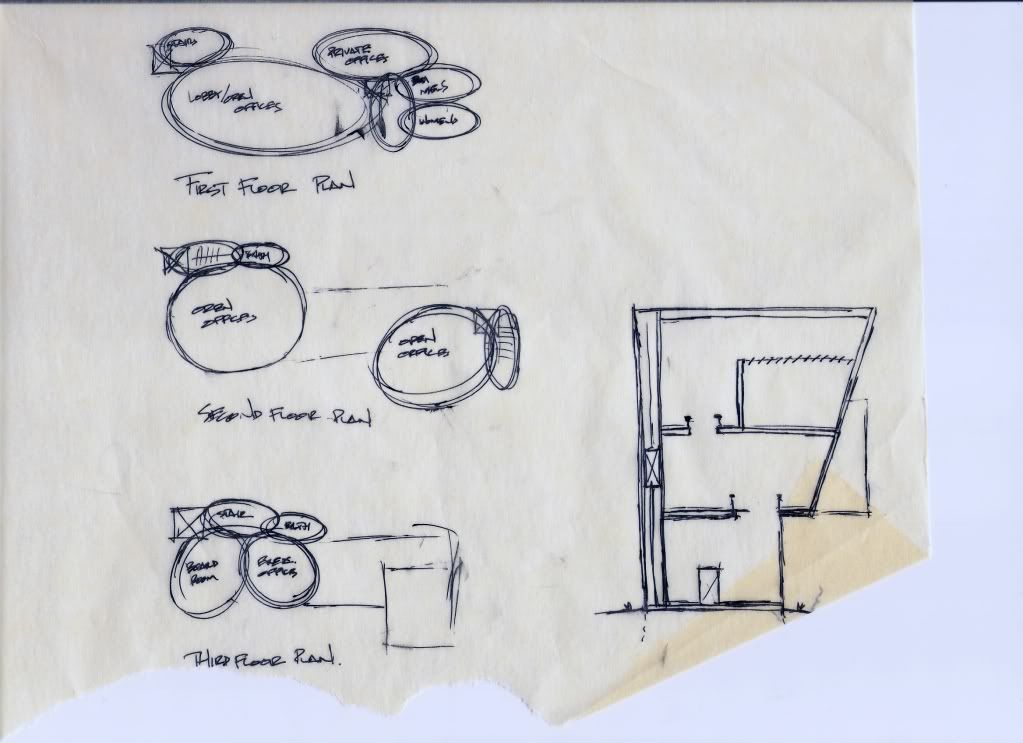
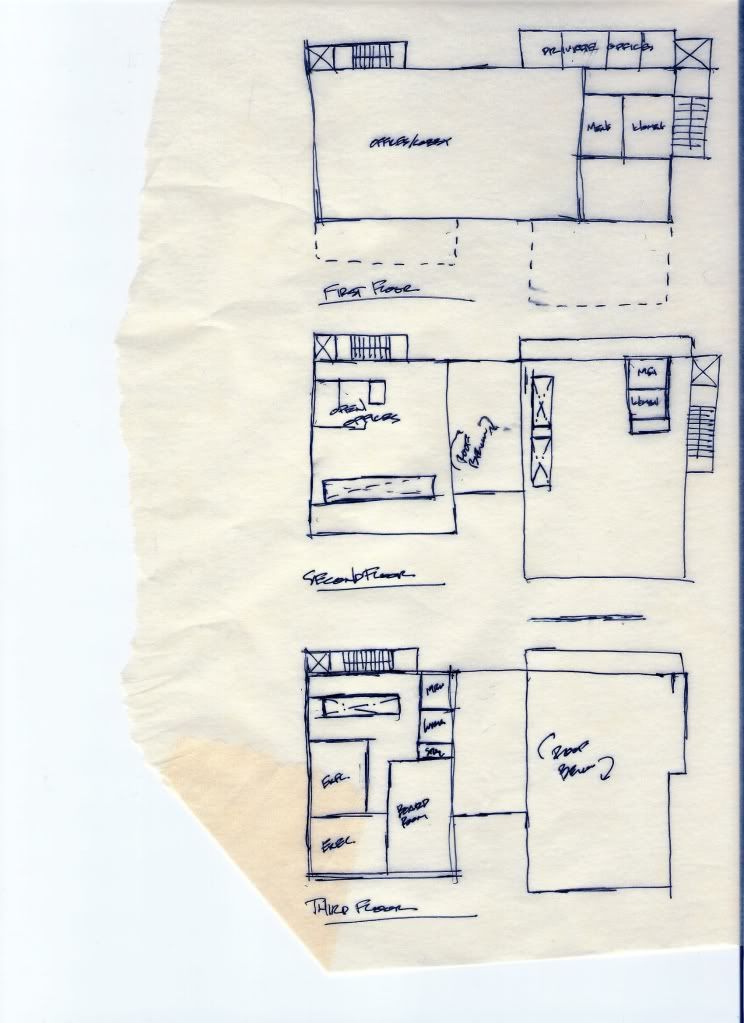
The bubble diagrams and floor plan sketches will now be transfered from the trace to Revit.  The levels (heights) should be thought out and placed into Revit (remember to really put some thought into the names and how they will help you further in the process).  This thought process will force the designer to think in three dimensions and more in depth about the volumes being created.  Keep in mind that the ceilings, walls, and floors could should be kept very "generic" in this stage.  These simple generic floor plans will allow the designer to analyze the flow and areas of the project while creating a solid foundation for your building model.

Furthermore, the model created some basic sections and elevations to study.  Again, remember to keep this stage of the Revit model very loose without having much detail.

Here are some examples I've created to illustrate this step:
I will create example floor plans and area plans in the future.  Sorry, technology doesn't always want to be in our favor!  Having some issues with my recording software.

Coming up...

I will introduce a few new programs.  After this simple introduction I will explain their roles in the third step of Revit Classroom Workflow.       

Monday, April 6, 2009

Revit Classroom Workflow - Step 1

0 comments
Conceptualization

Many of you may not think that Revit would be used so early in the design process. The truth is that Revit is great for creating quick and analyzing forms when utilized correctly (this is especially true with 2010's geometric form capabilities just around the corner).

First, the professor presents the program. The program will usually contain room requirements, owner requirements and guidelines, and square footage requirements. With this information alone and a concept sketch or two you will be able to produce a quick scaled and proportional mass or masses to analyze in three dimensions.

It would not be true if I were to say that a majority of the conceptualization step was not spent outside of Revit and outside of a computer. A roll of trace and a pencil are an irreplaceable tool during the design process. Even with Revit I find myself using half a roll or so of trace during the entire design. Ultimately, Revit will parallel your sketches and physical models during conceptualization. The combination of the three will greatly improve your own understanding of the masses and concept as well as helping you to be comfortable with your concept and two and three dimensions.

I have created an example that shows a quick concept sketch and how it parallels with the use of Revit. Additionally, this will have to be updated with the release of Revit 2010 and it's new Conceptual Mass capabilities.


Here are a collection of the DesignReform.net Videos using 2010:

Sunday, April 5, 2009

Integrated Project Delivery (IPD)

0 comments
I wanted to briefly introduce and point out some references about IPD before moving on with my "Revit Classroom Workflow" experiment. IPD is the direct result of using BIM products such as Revit and benefits the owners, constructors, and designers of a project.


I heard about IPD only recently. The interest in it forced me to do a ton of research on it and learn all about it. Although IPD applies mostly to the practicing professional architect that does not mean we do not need to learn and understand it. Imagine becoming a chef without knowing how to cook pasta at an Italian restaurant.


I plan to simplify IPD and find a way to incorporate it into the Revit Classroom. The following is a direct quote from AIA's IPD Guide. It explains the benefits a designer will have by using IPD:


"Designers— The integrated delivery process allows the designer to benefit from the
early contribution of constructors’ expertise during the design phase, such as accurate
budget estimates to inform design decisions and the pre-construction resolution of
design-related issues resulting in improved project quality and financial performance.
The IPD process increases the level of effort during early design phases, resulting in
reduced documentation time, and improved cost control and budget management,
all of which increase the likelihood that project goals, including schedule, life cycle
costs, quality and sustainability, will be achieved."

I have also accumulated a few starting point references for everyone to learn and further understand exactly what IPD is all about.

General IPD References:
Laying a simple foundation of this information and then using the chart I posted earlier during your design studio's will also have many advantages to you, the student. My goal over the next few weeks is to help my fellow students in understanding the real reasons why they are using Revit.

Saturday, April 4, 2009

Revit Classroom Workflow

0 comments
Why are we using Revit?


Two semesters ago I took a design course. It was a level 2 design course and there were about fifteen kids in the entire class. Out of those fifteen kids I was the only student using Revit.

Now, in that same design course, in the same school, more than half of the students are using Revit. Within one year the number of students using Revit rose from 6% to 60%!

Firstly, I would like to analyze and address the reasons why so many students decided to use Revit. My personal opinion is that almost every student who took the leap within such a short period of time did so for one reason. The "wow" factor. Ultimately, back when I was the only student in the class using Revit 2009 was just being released. None of the students even bothered to take the time and learn Revit until they saw the renderings being produced by Revit 2009. SOLD! The "wow" factor wins again.

The problem I have is not with the fact that more and more people are using Revit. The problem is the reasons why they are using Revit. I have confidence in saying that if I were to ask my fellow students why they are using Revit they would answer with one or more of the following:
  • It makes a 3D Model for me.
  • It makes realistic renderings
  • It makes sections and elevation for me.
  • It plots nicer than my CAD files did.
  • Etc... etc...
Although these are all benefits of using Revit they are not nearly the only benefits.

Greg, over at Revit3D.com, and I have had numerous conversations revolving around this topic. How can we control the future of Revit? How can we stop Revit from becoming just another drafting tool the way Architectural Desktop did? I believe Greg's exact words were, "We don't want these students graduating and being a bunch of BIMpanzees!" Sadly, this will happen if we, the students, do not educate ourselves on the many other benefits of using Revit in the future.

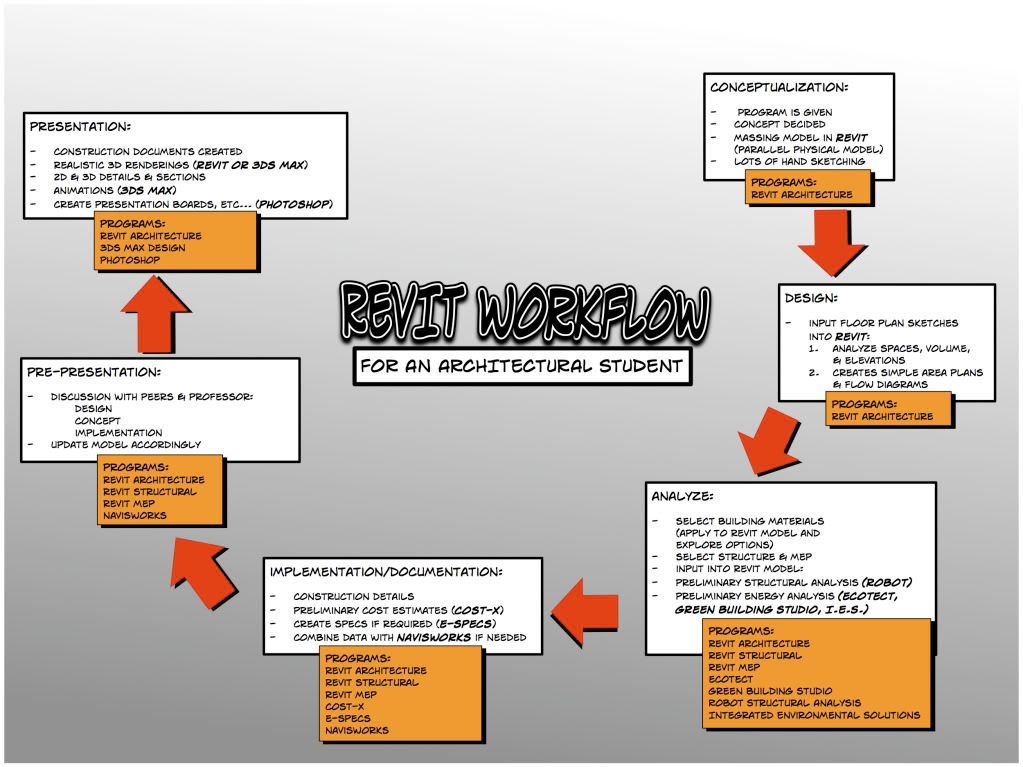
My goal is to create a guide and starting point for my fellow students and I. There are many advantages to using Revit in the classroom that will parallel the use of Revit in professional practice. Just because our professors don't teach or require the use of Revits extensive capabilities does not mean we cannot or should not incorporate them into our design process. The following chart is a preliminary workflow diagram I have devised as a general outline and starting point. With this guide we can simulate the use of Revit in professional practice while having a major advantage over the rest of the students in our design studio's.


Revit Classroom Workflow Steps:
  1. Conceptualization
  2. Design
  3. Analyze
  4. Implementation/Documentation
  5. Pre-Presentation
  6. Presentation

Over the next few posts I will explain each of the steps of this workflow chart. I will explain how Revit will be utilized. I will also explain and introduce many new programs some of you might not have ever heard of. Enjoy. I have opened up the dialogue. Please email me or comment with questions and input that will further excel this experiment of mine.