Clicky Web Analytics
presentation
documentation
creation
automation
bim after dark live
Showing posts with label revit materials. Show all posts

Thursday, September 22, 2022

Modern Kitchen Renovation Series - More Materials + Lighting in Revit (Episode 13)


In episode 13 of our modern kitchen renovation series we will be working on adding more materials and also lighting in Revit as we continue preparing for our client meeting.

I'll run through a really sexy floor material, some tips of copying materials, keyboard shortcuts, and adding some initial lighting.


Saturday, September 10, 2022

Modern Kitchen Renovation Series - Adding Materials in Revit (Episode 12)


In episode 12 of our modern kitchen renovation series we will be talking about adding materials in Revit for the purpose of rendering in Enscape and making good looking orthogonal views.

I'll run through three different methods to making rendering materials from out of the box to custom materials. 


Thursday, July 7, 2022

Materials and Patterns that Follow a Curve in Revit Tutorial


This is a quick video I created inspired by a Twitter question.  I'll show you a simple little hack to make your materials and patterns follow a curve in Revit!  The best part is they render correctly, too!

Monday, August 11, 2014

The Ultimate Revit Material Marathon - Replay


For those of you who could not make it to The Ultimate Revit Material Marathon last week, Novedge was nice enough to record and it and post it online!

Over 300 people attended the webinar live!  It felt as if every single one of them asked a question!  You will see toward the end of the video I tried answering as many as I could.  The Novedge team saved those questions and I will be answering the unanswered questions in a blog post down the road.

If you enjoy the video below you will definitely enjoy my latest video series BIM After Dark. I go through many of the techniques shown (at a much slower pace) and expand on them as well!  Click here to find out more...


Click here to view the webinar via Vimeo.

Thursday, July 17, 2014

Create Your Own Material Libraries in Revit


Beyond actually creating custom materials this would be the number one question I get when it comes to material management.  Here is the scenario:

I have a project that I have created a bunch of new materials (or modified a bunch of defaults ones).  I tweaked and rendered these materials to point where I am finally happy.  Now, I want to bring these materials into a different project that has already been started.  How do I accomplish this?!

For a while, I was making sure the material and asset names were unique and I would copy/paste elements with those materials applied into the new project... Yeah, I did...  Not anymore!  Wait until you see how easy it is to share materials between Revit projects.

First, you need to understand that a materials and and asset are two DIFFERENT things.

Monday, February 3, 2014

Revit Tip - Double Duplicate for Less Headaches (Material Browser)


This is one of those things that can make you throw your keyboard if you don't know about it.  That's right, throw your keyboard!

What am I talking about?  Well, here is the scenario:

You are cruising through a Revit model creating walls, doors, windows, and applying materials.  You are also duplicating and creating new materials.  Assigning them some properties and continuing along.  Finally, you stop to take a coffee break and save.

When you get back from your coffee break, you flip tot he default 3D view and turn on Realistic Shading.  To your disbelief, your entire model is yellow!  What?!  Why??

It turns out the first material you made was a yellow gypsum wall.  Then, you duplicated that material while creating all of your new materials.  The problem is that you did not duplicate the "Asset" as well! I know what you're thinking, "what the heck is the asset?!  I never had to duplicate that before!".

Well, Revit 2013 and 2014 introduced some major changes in the material browser (I promise, I won't talk about the disaster of Revit 2013's material browser).

Wednesday, November 6, 2013

Revit Tutorial - Mapping Patterns and Materials (Enjoy Revit)


This is a very, very, cool tip.  If you have ever had crazy geometry and attempted to wrap it with a material and then render it... You will know that some crazy results can occur.  So how would you make a soldier course pattern and rendering material follow an arch like this:


Tuesday, April 2, 2013

Revit Tip - Default Materials

This is a very simple tip but it may help some of you.  A classmate of mine created a bunch of little box shaped building with the In-Place Massing tool.  Unfortunately, she finished the mass family prior to copying them all over the place.  She then wanted to change the material from the default mass material (which is transparent) to something opaque.

After realizing that she had to click edit in-place to every single family instance to change it's material she decided to just leave them transparent.  Finally, she asked me about it the other day and I pointed her to the material editor.

When you do not apply a material to specific objects Revit uses that category's default material.  Therefore, all she had to do was change the "Default Form" material to her desired graphic results.  TAH DAH!

Take some time and learn the default materials within Revit. They will help you one day.  I promise.


Tuesday, June 19, 2012

Revit Tip - Create and Share Materials

Luke linked to a great post over at AEC Tech Talk about Revit 2013 and the ability to share material libraries internally...

Autodesk 2013 products allow you to create a library that contains the most commonly used and standard materials within an organization. 

 It can be daunting and confusing to users when they go to specify a material for something and there are many materials from which to choose. Autodesk provides many materials Out-Of-The-Box (OOTB), companies will develop materials in-house, and materials may be downloaded, all of which creates a large collection of materials. This article will describe how you can create a central library on the company server in 3 easy steps, from which users can select the preferred material.


..... Click here to see the post....


Wednesday, May 23, 2012

Revit Tutorial - Logo Painted CMU Wall

Here is a cool one that a buddy of mine asked about. Sean asked:

 I was wondering if you knew of a way to place a logo or an image on a surface like a wall, while also showing the detail of the wall say (CMU wall). I tried taking it out of photoshop as a png., tiff., and jpg. and eliminated the white. Also tried to make it a transparency tiff in photoshop, but couldn’t get it to print without the edges with the white fill. Whats my issue?

Rendering of a CMU Wall with a Logo Painted on it.

Topics Covered:
    1. Splitting a walls face.
    2. Creating the logo Material.
    3. Applying the logo Material.
    4. Rendering and viewing the logo.
Click here to view the video via Screencast.

Wednesday, August 25, 2010

Revit Tutorial - Family Creation Series - Part 6

Topics Covered:
  • Adding a material to your family components.
  • Creating a new material.
  • Adding material parameters.
  • Using material parameters.
  • Creating different family types with multiple materials.
Click here to view the Revit Family Creation Series - Part 6 video...

Tuesday, July 6, 2010

Revit Tutorial - Image Fade

Little tip from Revit Clinic that will help you all out...

Render Appearance Image Fade

Example scenario:
I have an image I specify, then I select a color, but when I render the image never represents the color I specify.
For some material render appearances, such as the Default > Generic, there is an option to specify an Image and a Color:
1 
Notice the setting below, for Image Fade.  Image fade controls the composite between the base color and the diffuse image.

Saturday, March 21, 2009

Tutorial - Rendering a Flower Vase

2 comments
Julie asked:

"I am a student in The Art Institute of Las Vegas and I'm making a project with Revit. I have found several families in Revit City, some of them I've been able to change the materials and colors. But there are some that I can't make any changes on. Do you know how I could make changes, for example a single banquet I found, I would like to change the color of the seating, and a flower vase, when its being rendered the flower is in default color, how could i change the color of the flower?"

Thanks for the question Julie! Julie is an Interior Design student utilizing Revit. It is great to have Revit questions come from different perspectives of the fields. Julie also informed me that she was the President of her school's ASID (American Society of Interior Designers).
I created a little video to explain the very basics of setting up rendering materials.

Topics Covered:
- Editing Materials
- Creating New Materials
- Adding Rendering Materials
- Relationship Between Project and Family materials


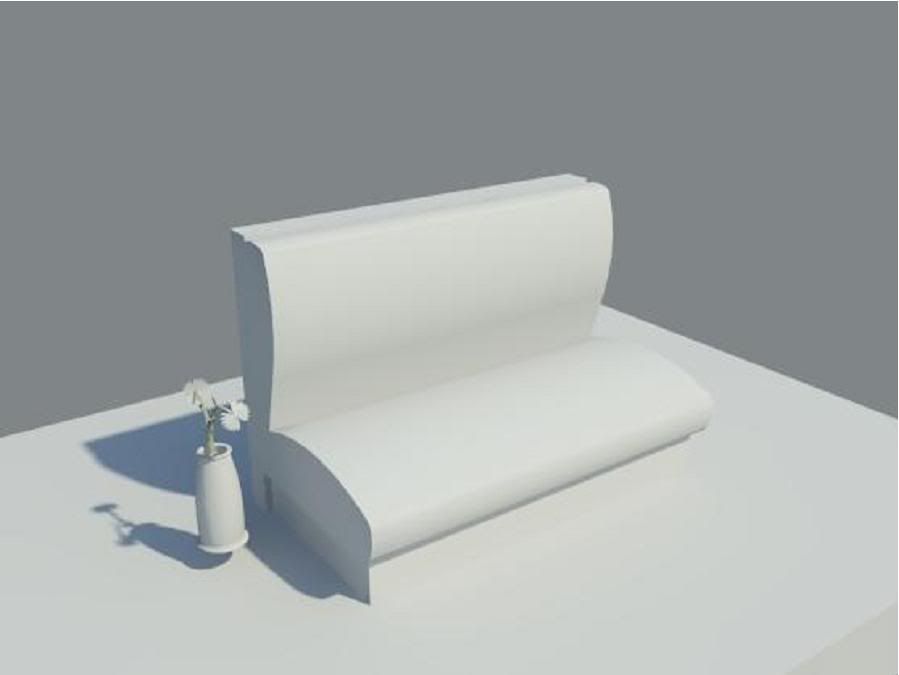
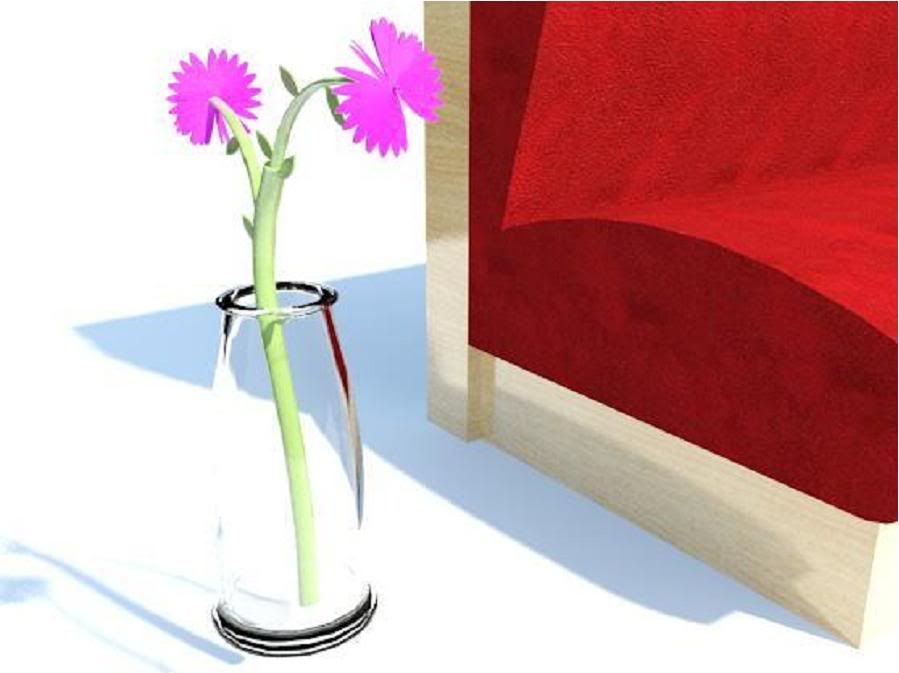
Here are the two (low quality) renderings I made during the video:

Rendering 1 - No Materials

Rendering 2 - With Materials

P.S. I would not suggest using those families she downloaded. I find the flower hideous and the chair could be made much better.